


Title here
Summary here
Facing key advertising challenges? Take control of your tracking: audit, optimization, GDPR compliance, CMP, Consent Mode v2, and server-side tagging.
Contact Lucas or book a discovery callGoogle Analytics
Questions about this article?
Open it in your AI assistant to summarise it or apply it to your setup.
In Google Analytics 4, enhanced measurements are a set of features that automatically collect several types of interactions as soon as GA4 is installed on your website. No need to touch code or configure events in Google Tag Manager. In theory, this would seem to make Google Analytics a turnkey solution, but we’ll see in this article that this is far from the case.
In concrete terms, when you create a web data stream in GA4, enhanced measurements are enabled by default. To access them, go to Admin > Data Stream, select your web data stream, and you’ll see the dedicated section.
Attention
In the world of tracking, any automatic operation should be taken with a grain of salt. Enhanced measurements are easy to set up, but this solution has its limits and may not meet your requirements/needs.
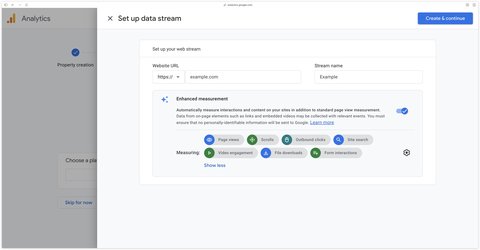
When enhanced measurements are enabled (which they are by default), GA4 immediately starts tracking the following 7 types of interactions:
page_view)scroll)click with outbound set to true)view_search_results)video_start, video_progress, video_complete)file_download)form_start, form_submit)Each event can be managed individually.
You can keep the ones you want and disable the others. This flexibility allows you to tailor your data collection to your needs.
Good to know
Beyond enhanced measurements, GA4 also collects 3 distinct automatic events that are also important to know about:
first_visit on a user’s very first visit (created automatically by GA4 when the _fv parameter is present in the page_view event)session_start for each new session (automatically created by GA4 when the _ss parameter is present in the page_view event)user_engagement which is triggered after certain actions. It contains the engagement_time_msec parameter indicating the user’s engagement time in milliseconds.| Events | GA4 parameters used | Recommendation |
|---|---|---|
page_view | page_location page_referrer page_title language screen_resolution | Mandatory (can be disabled with send_page_view set to false in Google Tag for SPAs) |
scroll | percent_scrolled | ⚠️ Disable (short pages = too many events, no 25/50/75% granularity => use GTM) |
click | link_id link_classes link_url link_domain outbound | ✅ Keep (works correctly) |
view_search_results | search_term | ✅ Keep (may require additional configuration) |
video_start video_progress video_complete | video_current_time video_duration video_percent video_provider video_title video_url visible | ❌ Disable (requires enablejsapi=1 and iframe_api, unreliable => use GTM) |
file_download | file_extension file_name link_text link_url link_id link_classes | ✅ Keep (fixed but sufficient list of extensions) |
form_start form_submit | form_id form_destination form_length first_field_id first_field_name first_field_type | ❌ Disable (imprecise, false positives => use GTM) |
The page_view event is triggered each time a page is loaded. This is by far the most important event to set up to obtain quality data in GA4.
Unlike other enhanced measurement events, it is not possible to disable page_view from the GA4 interface. It is an integral part of the measurement system.
Each page view automatically transmits essential contextual information: browser language, full page URL, visitor’s original page, page title and screen resolution. This data accompanies all GA4 events, not just page views.
The Google Tag contains a parameter that controls the automatic sending of page views. In certain specific cases (notably for Single Page Applications), you can disable this automatic sending by setting send_page_view to false, then manage page views manually via a dedicated event tag.
<!-- Google tag (gtag.js) -->
<script async src="https://www.googletagmanager.com/gtag/js?id=G-XXX"></script>
<script>
  window.dataLayer = window.dataLayer || [];
  function gtag(){dataLayer.push(arguments);}
  gtag('js', new Date());

  gtag('config', 'G-XXX', { send_page_view: false });
</script>
Single page applications (often coded with React, Angular, Vue or NextJS) pose a particular challenge: the URL changes without the page actually reloading. GA4 attempts to handle this case by tracking history changes through the gtm.historyChange-v2 event, but this remains an automatic operation that you should test to make sure it meets your expectations and needs.
If this is not the case, you can manually listen for history changes using the History Change trigger in Google Tag Manager.
Discover the 3 ways to track SPAs
GA4 automatically registers when a visitor scrolls beyond 90% of the page height.
| Parameter | Description | Available custom report | Available exploration |
|---|---|---|---|
percent_scrolled | Scroll depth | ✅ | ✅ |
Limitations to be aware of
If your page is short in height, the scroll event will be triggered very often, which can affect the quality of your analysis in GA4. Also, enhanced measurements don’t offer a more granular view of thresholds at 25, 50 and 75% scroll.
Solution
For more precise scroll tracking, I recommend that you manually configure scroll tracking with Google Tag Manager by following my dedicated guide.
    <h5 class="card-title my-0"><a href="/en/blog/google-tag-manager/scroll-depth-tracking/" target="_blank" class="stretched-link text-reset text-decoration-none">Scroll tracking with GTM and Google Analytics</a></h5>
    <p class="card-text mt-1">Track scroll manually from Google Tag Manager with my dedicated article on the subject</p>
  </div>
  <div class="d-flex flex-column justify-content-center">
    <svg xmlns="http://www.w3.org/2000/svg" class="icon icon-tabler icon-tabler-arrow-right" width="20" height="20" viewBox="0 0 24 24" stroke-width="2" stroke="currentColor" fill="none" stroke-linecap="round" stroke-linejoin="round">
      <path stroke="none" d="M0 0h24v24H0z" fill="none"></path>
      <path d="M5 12l14 0"></path>
      <path d="M13 18l6 -6"></path>
      <path d="M13 6l6 6"></path>
    </svg>
  </div>
</div>
An outbound click occurs when a visitor clicks on a link that takes them to a domain other than your own. GA4 automatically registers these interactions via an event named simply click, distinguished by an outbound parameter with the value true.
| Parameter | Description | Available custom report | Available exploration |
|---|---|---|---|
link_id | Value of id attribute of link | ✅ | ✅ |
link_classes | Value of class attribute of link | ✅ | ✅ |
link_url | href attribute value for link | ✅ | ✅ |
link_domain | Link domain | ✅ | ✅ |
outbound | true if link is outbound | ✅ | ✅ |
<a id="outbound-link" class="bg-dark color-blue" href="https://www.example.com" target="_blank">Go to example.com</a>
<!--
link_id -> outbound-link
link_classes -> bg-dark color-blue
link_url -> https://www.example.com
link_domain -> www.example.com
outbound -> true
-->
Solution
You can keep outbound clicks enabled, as it works fine. However, if you want to go further in your analysis, I recommend that you manually configure click tracking with Google Tag Manager.
    <h5 class="card-title my-0"><a href="/en/blog/google-tag-manager/click-tracking-with-ga4/" target="_blank" class="stretched-link text-reset text-decoration-none">Tracking clicks with Google Tag Manager and GA4</a></h5>
    <p class="card-text mt-1">Track clicks manually with GTM and GA4</p>
  </div>
  <div class="d-flex flex-column justify-content-center">
    <svg xmlns="http://www.w3.org/2000/svg" class="icon icon-tabler icon-tabler-arrow-right" width="20" height="20" viewBox="0 0 24 24" stroke-width="2" stroke="currentColor" fill="none" stroke-linecap="round" stroke-linejoin="round">
      <path stroke="none" d="M0 0h24v24H0z" fill="none"></path>
      <path d="M5 12l14 0"></path>
      <path d="M13 18l6 -6"></path>
      <path d="M13 6l6 6"></path>
    </svg>
  </div>
</div>
GA4 automatically detects when a user performs a search on your site with the view_search_results event by analyzing query parameters.
| Query parameter | Example |
|---|---|
q | https://example.com/recherche?q=chaussures |
s | https://example.com/recherche?s=chaussures |
search | https://example.com/recherche?search=chaussures |
query | https://example.com/recherche?query=chaussures |
keyword | https://example.com/recherche?keyword=chaussures |
If your search URL looks like example.com/search?q=shoes, GA4 will automatically capture the term “shoes”.
Did you know?
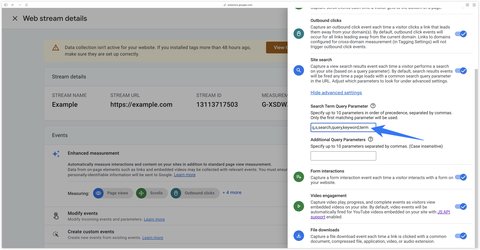
Let’s imagine that on your site, the search is done with the term parameter like this example.com/search?term=shoes.
As term is not one of the query parameters listened to by GA4 by default, you can add it to the list in the enhanced measurement settings.
In all, 10 different parameters can be used.
| Parameter | Description | Available custom report | Available exploration |
|---|---|---|---|
search_term | Search term | ✅ | ✅ |
If you embed YouTube videos on your site, GA4 can track the following interactions automatically under certain conditions:
video_start)video_progress)video_complete)| Parameter | Description | Custom report available | Exploration available |
|---|---|---|---|
video_current_time | Current time in video | ❌ | ❌ |
video_duration | Total time in video | ❌ | ❌ |
video_percent | Current time / total time * 100 | ❌ | ❌ |
video_provider | youtube every time | ✅ | ✅ |
video_title | Video title | ✅ | ✅ |
video_url | Video URL | ✅ | ✅ |
visible | true if the video is in the viewport | ✅ | ✅ |
<script src="https://www.youtube.com/iframe_api"></script>
<iframe width="560" height="315" src="https://www.youtube.com/embed/nS8HLdwmVlY?enablejsapi=1"></iframe>

<!--
video_current_time -> 210
video_duration -> 517
video_percent -> 40
video_provider -> youtube
video_title -> Google Analytics MCP Setup Tutorial
video_url -> https://www.youtube.com/watch?v=nS8HLdwmVlY
visible -> true
-->
Limitations to be aware of
This feature requires that the YouTube iframe on your site contains a specific parameter (?enablejsapi=1) in its URL and that the iframe API is enabled (iframe_api). These conditions are not always met by default and require additional action on your part.
For more technical profiles
Automatic tracking of YouTube videos will not work if:
window.YT is set to undefined, andenablejsapi=1.Solution
The best thing to do here is to manually configure Google Tag Manager to track your YouTube (or other) videos.
    <h5 class="card-title my-0"><a href="/en/blog/google-tag-manager/track-youtube-videos/" target="_blank" class="stretched-link text-reset text-decoration-none">Tracking YouTube videos with Google Tag Manager and GA4</a></h5>
    <p class="card-text mt-1">Track YouTube videos manually via my dedicated article</p>
  </div>
  <div class="d-flex flex-column justify-content-center">
    <svg xmlns="http://www.w3.org/2000/svg" class="icon icon-tabler icon-tabler-arrow-right" width="20" height="20" viewBox="0 0 24 24" stroke-width="2" stroke="currentColor" fill="none" stroke-linecap="round" stroke-linejoin="round">
      <path stroke="none" d="M0 0h24v24H0z" fill="none"></path>
      <path d="M5 12l14 0"></path>
      <path d="M13 18l6 -6"></path>
      <path d="M13 6l6 6"></path>
    </svg>
  </div>
</div>
    <h5 class="card-title my-0"><a href="/en/blog/google-tag-manager/track-vimeo-videos/" target="_blank" class="stretched-link text-reset text-decoration-none">Track Vimeo videos with Google Tag Manager and GA4</a></h5>
    <p class="card-text mt-1">If you use Vimeo, take a look at my listener</p>
  </div>
  <div class="d-flex flex-column justify-content-center">
    <svg xmlns="http://www.w3.org/2000/svg" class="icon icon-tabler icon-tabler-arrow-right" width="20" height="20" viewBox="0 0 24 24" stroke-width="2" stroke="currentColor" fill="none" stroke-linecap="round" stroke-linejoin="round">
      <path stroke="none" d="M0 0h24v24H0z" fill="none"></path>
      <path d="M5 12l14 0"></path>
      <path d="M13 18l6 -6"></path>
      <path d="M13 6l6 6"></path>
    </svg>
  </div>
</div>
As soon as a visitor clicks on a link to a downloadable file, GA4 records the action via the file_download event.
| Extension | Description |
|---|---|
pdf | Portable Document Format |
doc | Microsoft Word (Legacy) |
docx | Microsoft Word (Modern) |
txt | Plain Text File |
rtf | Rich Text Format |
xls | Microsoft Excel (Legacy) |
xlsx | Microsoft Excel (Modern) |
csv | Comma-Separated Values |
pps | PowerPoint Show (Legacy) |
ppt | PowerPoint Presentation (Legacy) |
pptx | PowerPoint Presentation (Modern) |
key | Apple Keynote |
zip | ZIP Archive |
rar | RAR Archive |
7z | 7-Zip Archive |
gz | GZIP Compressed |
pkg | Package File |
exe | Windows Executable |
mp3 | MP3 Audio |
wav | WAV Audio |
wma | Windows Media Audio |
mid | MIDI Audio (Short) |
midi | MIDI Audio |
mp4 | MPEG-4 Video |
avi | Audio Video Interleave |
mov | QuickTime Video |
mpeg | MPEG Video |
mpg | MPEG Video (Short) |
wmv | Windows Media Video |
| Parameter | Associated value | Available custom report | Available exploration |
|---|---|---|---|
file_extension | File extension | ✅ | ✅ |
file_name | File name | ✅ | ✅ |
link_classes | Value of class attribute of clicked link | ✅ | ✅ |
link_id | id attribute value of clicked link | ✅ | ✅ |
link_text | Text of link present between a tags | ✅ | ✅ |
link_url | Value of id attribute of clicked link | ✅ | ✅ |
<a href="./files/doc.pdf" download="document.pdf" id="dl_link" class="bg-black color-white">Download file</a>

<!--
file_extension -> pdf
file_name -> /files/doc.pdf
link_classes -> (empty) no value comes up in my test
link_id -> dl_link
link_text -> Download file
link_url -> https://example.com/files/doc.pdf

Document name when downloaded by visitor: document.pdf
-->
Limitations to be aware of
The list of supported extensions is fixed. You cannot enrich it via the GA4 interface. If you distribute .jpg or .png files, for example, they won’t be counted automatically.
Solution
File downloads work correctly. You can keep this enhanced measurement enabled.
Using Google Tag Manager, you can create a custom trigger that detects missing extensions.
GA4 promises to track forms automatically with the following events:
form_start when a user starts filling in a fieldform_submit when the form is submitted.| Parameter | Description | Available custom report | Available exploration |
|---|---|---|---|
form_destination | form destination URL | ❌ | ❌ |
form_id | Form identifier (id attribute of HTML form tag) | ❌ | ❌ |
form_length | Number of fields present in the form (including the submit field) | ❌ | ❌ |
first_field_id | Attribute id of the first field to be filled in | ❌ | ❌ |
first_field_name | Attribute name of the first field to be filled in | ❌ | ❌ |
first_field_type | Attribute type of the first field to be filled in | ❌ | ❌ |
Limitations to be aware of
I wouldn’t recommend using this feature, as it’s too imprecise. Very few forms are supported and when they are, there can be false positives in the submissions detected.
Also, you’ll need to create custom dimensions to exploit form-related parameters in your GA4 reports or explorations.
Solution
To track your forms, I advise you to follow dedicated tutorials depending on the form you’re using.
    <h5 class="card-title my-0"><a href="/en/blog/google-tag-manager/elementor-forms/" target="_blank" class="stretched-link text-reset text-decoration-none">Tracking Elementor forms</a></h5>
    <p class="card-text mt-1">Complete guide to tracking Elementor forms</p>
  </div>
  <div class="d-flex flex-column justify-content-center">
    <svg xmlns="http://www.w3.org/2000/svg" class="icon icon-tabler icon-tabler-arrow-right" width="20" height="20" viewBox="0 0 24 24" stroke-width="2" stroke="currentColor" fill="none" stroke-linecap="round" stroke-linejoin="round">
      <path stroke="none" d="M0 0h24v24H0z" fill="none"></path>
      <path d="M5 12l14 0"></path>
      <path d="M13 18l6 -6"></path>
      <path d="M13 6l6 6"></path>
    </svg>
  </div>
</div>
    <h5 class="card-title my-0"><a href="/en/blog/google-tag-manager/hubspot-forms/" target="_blank" class="stretched-link text-reset text-decoration-none">Tracking Hubspot forms</a></h5>
    <p class="card-text mt-1">Complete guide to tracking Hubspot forms</p>
  </div>
  <div class="d-flex flex-column justify-content-center">
    <svg xmlns="http://www.w3.org/2000/svg" class="icon icon-tabler icon-tabler-arrow-right" width="20" height="20" viewBox="0 0 24 24" stroke-width="2" stroke="currentColor" fill="none" stroke-linecap="round" stroke-linejoin="round">
      <path stroke="none" d="M0 0h24v24H0z" fill="none"></path>
      <path d="M5 12l14 0"></path>
      <path d="M13 18l6 -6"></path>
      <path d="M13 6l6 6"></path>
    </svg>
  </div>
</div>
    <h5 class="card-title my-0"><a href="/en/blog/google-tag-manager/webflow-forms/" target="_blank" class="stretched-link text-reset text-decoration-none">Tracking Webflow forms</a></h5>
    <p class="card-text mt-1">Complete guide to tracking Webflow forms</p>
  </div>
  <div class="d-flex flex-column justify-content-center">
    <svg xmlns="http://www.w3.org/2000/svg" class="icon icon-tabler icon-tabler-arrow-right" width="20" height="20" viewBox="0 0 24 24" stroke-width="2" stroke="currentColor" fill="none" stroke-linecap="round" stroke-linejoin="round">
      <path stroke="none" d="M0 0h24v24H0z" fill="none"></path>
      <path d="M5 12l14 0"></path>
      <path d="M13 18l6 -6"></path>
      <path d="M13 6l6 6"></path>
    </svg>
  </div>
</div>
    <h5 class="card-title my-0"><a href="/en/blog/master-form-tracking-with-gtm-and-ga4/" target="_blank" class="stretched-link text-reset text-decoration-none">Tracking forms</a></h5>
    <p class="card-text mt-1">General guide to tracking forms</p>
  </div>
  <div class="d-flex flex-column justify-content-center">
    <svg xmlns="http://www.w3.org/2000/svg" class="icon icon-tabler icon-tabler-arrow-right" width="20" height="20" viewBox="0 0 24 24" stroke-width="2" stroke="currentColor" fill="none" stroke-linecap="round" stroke-linejoin="round">
      <path stroke="none" d="M0 0h24v24H0z" fill="none"></path>
      <path d="M5 12l14 0"></path>
      <path d="M13 18l6 -6"></path>
      <path d="M13 6l6 6"></path>
    </svg>
  </div>
</div>
I generally disable GA4’s enhanced measurement completely on customer projects for several reasons:
However, if you’re new to GA4 and don’t have the resources for a custom setup, the enhanced measurement may be a good place to start. They offer basic data collection without extra effort.
A question about this article, need an audit of your setup or server-side migration? Drop me a line, I reply within 24h.
Prefer to talk it through? Book a discovery call →

Not all Google Analytics 4 events carry the same weight. Discover which ones to track based on your activity: e-commerce, lead generation or SaaS.

GDPR, simplicity, product analytics, European hosting: here are 10 Google Analytics alternatives with their strengths, limitations and pricing.

Discover how to install Google Analytics (GA4) on WordPress: 6 simple to advanced methods

Comments
Join the discussion
A question, some feedback, a specific case? Leave a comment: I reply to every one.