Title here
Summary here
Facing key advertising challenges? Take control of your tracking: audit, optimization, GDPR compliance, CMP, Consent Mode v2, and server-side tagging.
Contact LucasUpdated: Tuesday, July 7, 2026
Microsoft Ads conversion tracking lets you measure the important actions taken on your site after a click on your ads. With Google Tag Manager, you can set up this tracking more easily, without directly modifying the website code.
In this article, we will see how to configure Microsoft Ads conversion tracking with Google Tag Manager, create a UET tag, send page views and check that conversions come through correctly. The goal is to help you obtain more reliable data to analyse and optimise your campaigns.
In short
Microsoft Ads conversion tracking lets you measure the actions that really create value on your site in order to optimise your campaigns with more reliable data.
Microsoft Ads (formerly Bing Ads) notably lets you create Search campaigns the same way as on Google Ads. Generally, advertising on Microsoft Ads is cheaper than on Google Ads because fewer advertisers take part in the auctions. This ad network can therefore represent an opportunity for your business, provided there is demand on the keywords you want to target.
As with Google Ads, your performance depends on quality conversion tracking, which is the foundation of a successful advertising campaign.
Without reliable tracking, it becomes hard to know which campaigns, keywords or ads really generate results. You can get clicks, traffic and impressions without understanding what actually contributes to your sales or your leads.
A conversion is an important action generated by the visitors of your website, such as a product purchase or the completion of a contact form.
Conversion tracking in Microsoft Ads relies mainly on the UET tag, for Universal Event Tracking. This tag lets you track the visits and important actions taken on your site, then send this data to Microsoft Ads.
Google Tag Manager then lets you centralise this configuration. You can create your tags, define your triggers and adjust your tracking without having to work directly in the site code for every change.
Now that the basics are in place, let’s move on to the configuration of Microsoft Ads conversion tracking. The goal is to create a UET tag, install it with Google Tag Manager, then check that page views and conversions are properly sent to Microsoft Ads.
The first step is to create the UET tag in Microsoft Ads. It is this tag that will then serve as the basis for sending page views and conversions from your site to the ad network.
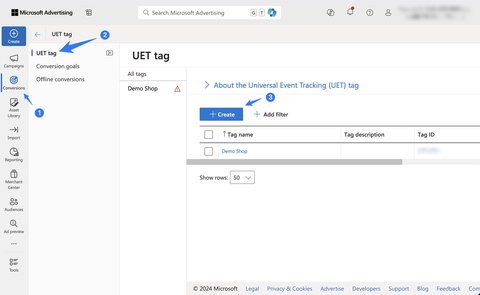
Go to Microsoft Ads, hover over the Conversions menu then click on UET tag. Then click the Create button.
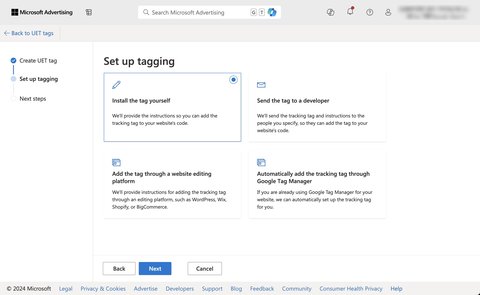
Give your UET Tag a name, here I call it My New UET Tag. Then select the Install the tag yourself option.
Good to know
At the next step, Microsoft offers you a script to install on your site. We will do this step with Google Tag Manager later, so don’t worry about it.
Congratulations, you have just created your UET tag!
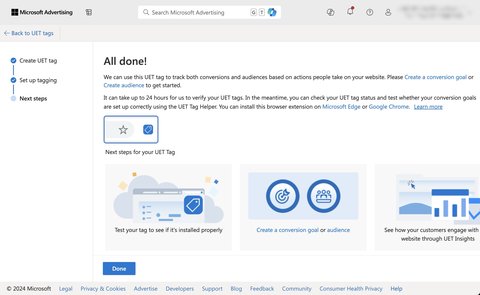
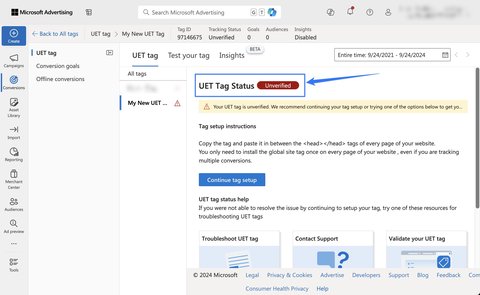
At this stage, your UET Tag has the Unverified status because no data is coming through to Microsoft Ads yet. This is normal: the tag has just been created but is not yet triggered on your site. In the next section, we will send page views to the UET tag with Google Tag Manager so that Microsoft Ads starts receiving data.
This step lets you install the UET tag on all the pages of the site. The goal is to send page views to Microsoft Ads in order to activate data collection before configuring the conversion events.
Go to Google Tag Manager, in the Tags section of your container click on New.
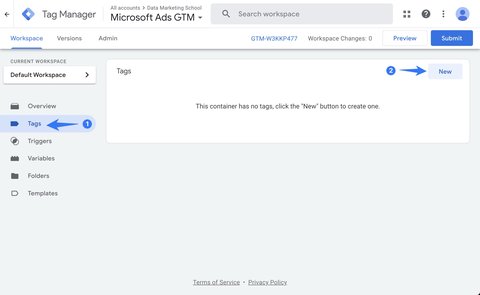
Then look for the Microsoft Advertising Universal Event Tracking tag in the Choose tag type section.
Good to know
This tag is not available in the community template gallery. It is a native Google Tag Manager tag, just like the Google Analytics or Google Ads tags. You can therefore select it directly from the tag types offered by GTM.
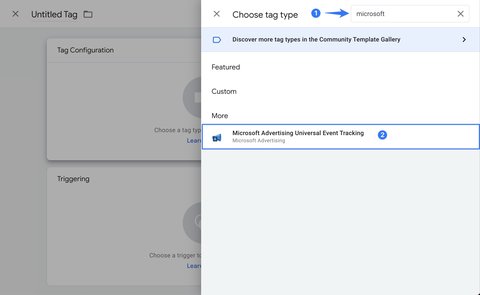
Once you have selected the tag, you can move on to its configuration.
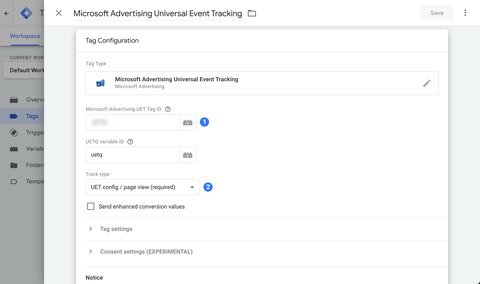
The principle is simple: Google Tag Manager must know which UET tag to send the data to. To do this, you need to enter your UET Tag ID, then keep the tracking type suited to sending page views.
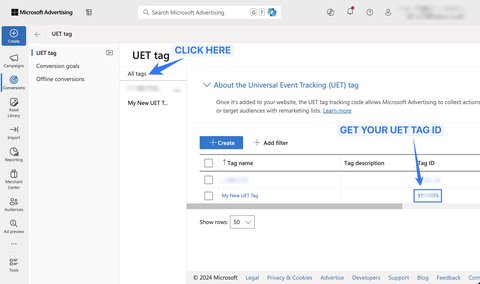
Copy the identifier shown in the Tag ID column, then paste it into the corresponding field of your tag in Google Tag Manager.
Then trigger this tag on all pages.
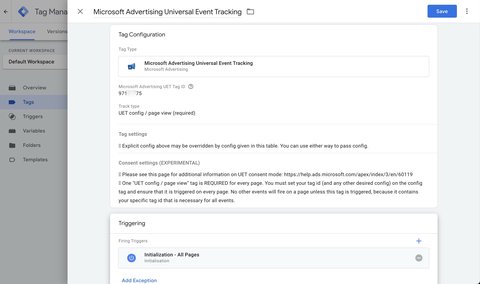
This global trigger is important: it lets Microsoft Ads receive page views across the whole site, which will then serve as the basis for Microsoft Ads conversion tracking.
Before publishing your changes, it is important to check that the UET tag triggers correctly. We first check the trigger in Google Tag Manager’s Preview mode, then the sending of the data with the UET Tag Helper extension.
In your GTM container, click on Preview to launch preview mode. You can then check that the tag has triggered correctly thanks to the Succeeded label.
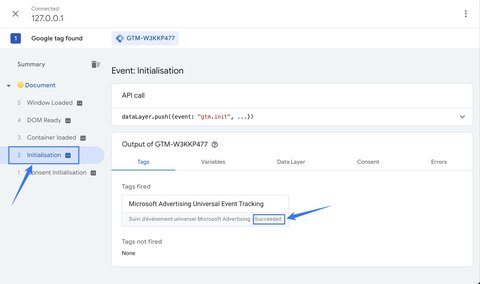
This first check confirms that the tag triggers properly in Google Tag Manager. Now you need to check that the data is actually received on the Microsoft Ads side.
To check the sending of the data to the UET tag, I recommend using the UET Tag Helper extension.
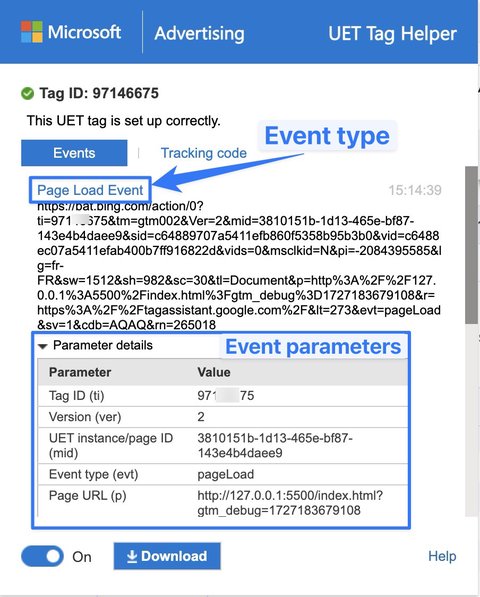
If you do see the Page Load Event, your tag works correctly and sends data to Microsoft Ads.
In the Microsoft Ads interface, our UET Tag has moved from the Unverified state to the Tag active state.
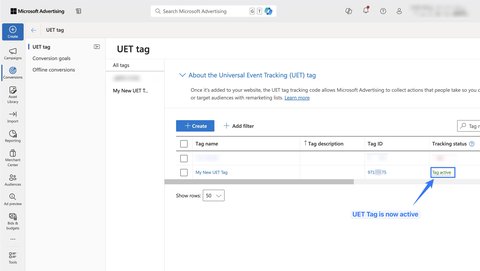
By clicking on the UET Tag, you can get more information. Here we can see for example that 10 Page Load events have been received and that the Tracking Status is active.
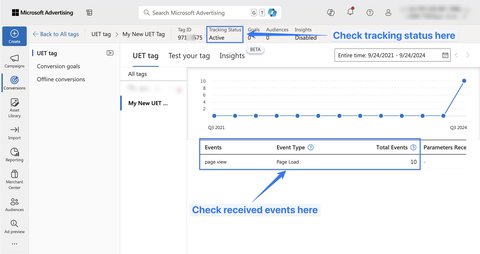
Congratulations, you are now sending page views to Microsoft Ads. The ad network is therefore able to determine whether a visitor comes from a Microsoft Ads advert or not.
At this stage, the base of the tracking is in place. It now remains to create a conversion goal in Microsoft Ads to measure the important actions taken on your site.
After installing the UET tag, you need to tell Microsoft Ads which actions should be counted as conversions. It is this step that then lets you measure purchases, leads or other important goals in your reports!
A conversion goal is an important event (also called a macro-conversion) that happens on your site, such as a purchase or the submission of a contact form.
In this tutorial we will create a purchase conversion goal in Microsoft Ads as an example. You can of course adapt this configuration to your own goal: quote request, sign-up, appointment booking or submitted form.
Go to Conversions > Conversion goals then click on Create.
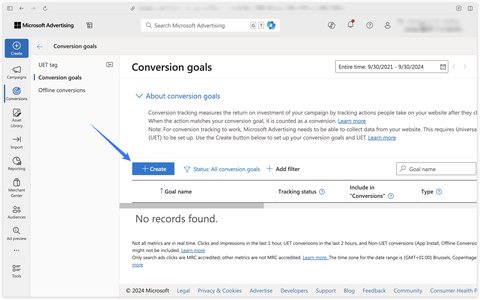
In the conversion type, select Website.
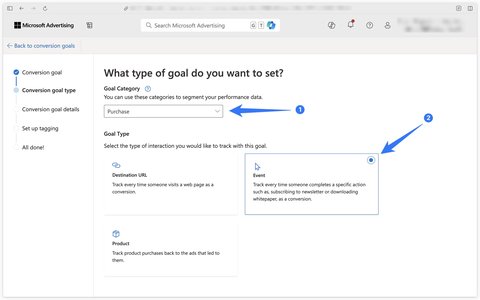
Then select Purchase as the goal category (or another one if you don’t want to track a purchase event) then Event as the conversion type.
The choice of the Event type is important here, because we will then send the conversion event from Google Tag Manager via the UET tag.
We will now configure the goal.
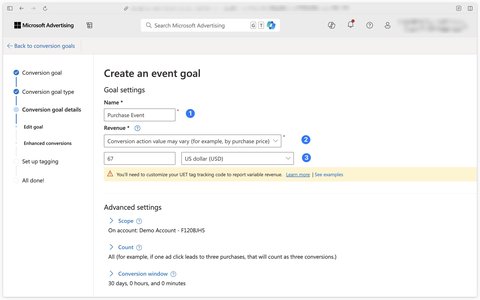
Then enter the Event Action, here purchase is set by default. This value is important: it will have to be reused exactly the same in Google Tag Manager so that Microsoft Ads correctly associates the event sent with your conversion goal.
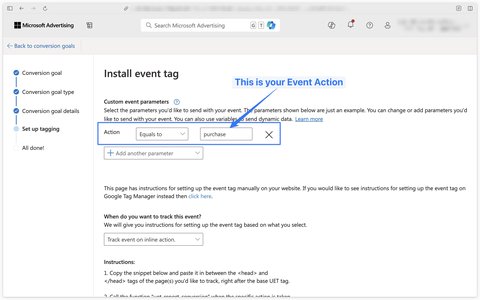
Congratulations, you have finished creating your conversion goal in Microsoft Ads!
Now that the conversion goal is created, you need to send the corresponding event from Google Tag Manager. It is this step that lets you make the link between the goal defined in Microsoft Ads and the event actually triggered on your site.
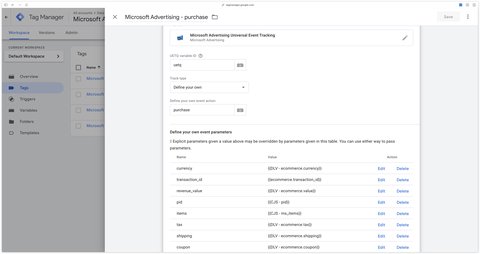
In Google Tag Manager, create a new Microsoft Advertising Universal Event Tracking tag. In the Track type menu, select Define your own. Enter purchase as the Event Action, reusing exactly the same value as the one configured in the Microsoft Ads conversion goal.
CJS Variable - ms_items
function() {
  var items = {{DLV - ecommerce.items}};
  var ms_items = [];

  if(items && items.length > 0) {
    items.forEach(function(item) {
      ms_items.push({
        id: item.item_id,
        price: item.price,
        quantity: item.quantity,
        brand: item.item_brand,
        category: item.item_category,
        list_name: item.item_list_name,
        list_position: item.index,
        variant: item.item_variant,
        location_id: item.location_id
      })
    });
  }

  return ms_items;
}
CJS Variable - pid
function() {
  return {
    email: {{DLV - email}},
    phone_number: {{DLV- phone}}
  }
}
You can also provide additional information to Microsoft Ads if you have it available in your Data Layer via the Define your own event parameters section. These parameters let you enrich the conversion event with information such as the value, the currency, the purchased products or certain user data depending on your configuration.
Good to know
For advanced users, I have made available the events and parameters tables that can be sent to Microsoft Ads at the end of this article. They let you go further with Microsoft Ads conversion tracking, especially for e-commerce configurations or more advanced tracking plans.
Once the conversion event is configured in Google Tag Manager, you need to check that it is properly sent to Microsoft Ads with the right parameters.
To check the sending of the data to the UET tag, I recommend using the UET Tag Helper extension.
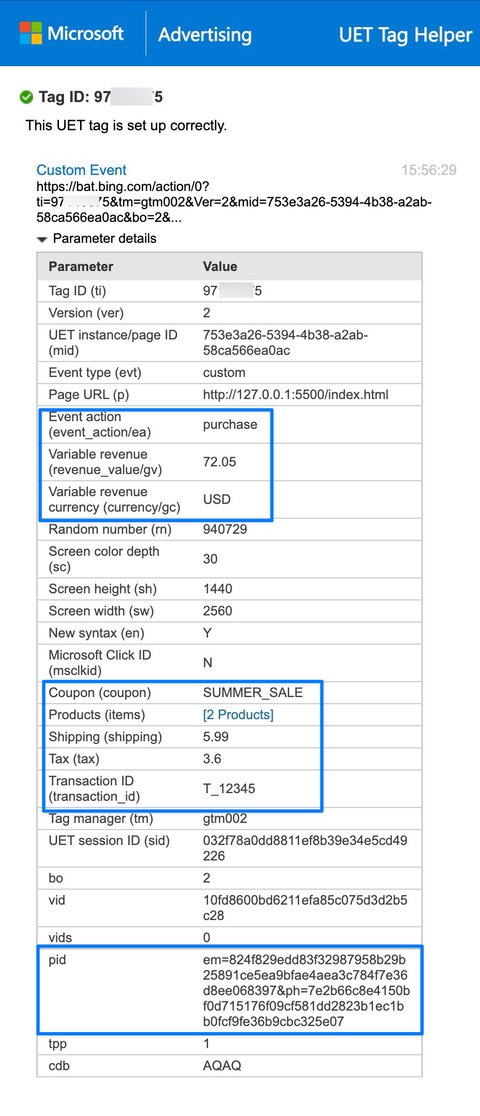
In UET Tag Helper, check in particular that the Event action matches the value configured in Microsoft Ads. In our example, we should find purchase, as well as the parameters associated with the conversion such as the value, the currency or the purchased products if you sent them.
If the conversion event appears correctly in UET Tag Helper, your Microsoft Ads conversion tracking is properly configured for this goal. You can now publish your changes in Google Tag Manager.
The previous configuration already lets you track a conversion in Microsoft Ads. To go further, you can also send additional parameters in order to enrich the data sent to the ad network.
Sending user data is done via the pid parameter, as we did earlier for our purchase event. This parameter can for example contain an email address or a phone number if this information is available in your Data Layer.
The object expected for this parameter must be built like this:
{
    email: "[email protected]",
    phone_number: "+33658478547"
}
Good to know
User data must be sent in clear text; the UET Tag will take care of hashing it before sending it to Microsoft Ads.
Before sending this type of data, however, check that your consent configuration is properly suited to your context and your data collection obligations.
You can also provide this data to the UET Tag ahead of sending the events, in the page view tag. This can be useful if you want this information to be available for several events, without having to resend it manually in each conversion tag.
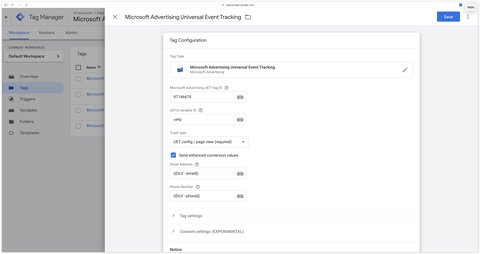
After sending the advanced parameters, there is one essential point left to address: consent management. For Microsoft Ads conversion tracking to work correctly in a GDPR context, you also need to configure the UET Consent Mode.
The UET Consent Mode lets you adapt the behaviour of the UET tag according to the user’s consent choice. This configuration is particularly important for sites that target users in France or, more broadly, in the European Economic Area.
The consent mode of the UET Tag works like that of Google Ads, except that it comprises a single consent signal: ad_storage. This signal has two possible values: granted or denied.
This signal can be set up via two modes: default at page load and update after the user’s consent has been collected.
In the European Economic Area, the consent mode is forced to denied in default mode. This means that if you don’t configure the UET Consent Mode, all your requests will go out as denied. If your IP address is in a European Economic Area country, you will therefore see this type of request:
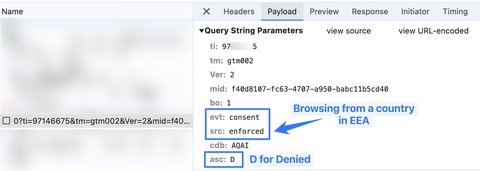
This means that, without specific configuration, Microsoft Ads may receive limited signals for users located in the European Economic Area. Setting up the UET Consent Mode therefore lets you send a cleaner consent signal, based on the choice actually expressed by the user.
To configure the UET Consent Mode, you can use Simo Ahava’s tag and tick the Enable Microsoft Consent Mode box. This tag lets you manage the consent commands directly from Google Tag Manager, notably by sending an update signal after the user’s choice in your CMP.
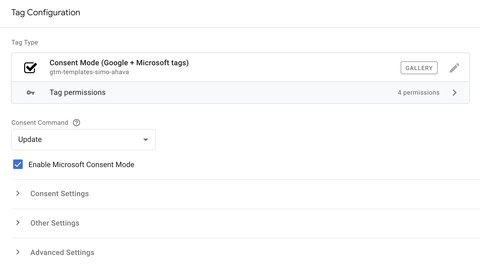
Once this configuration is in place, remember to test the consent behaviour in Preview mode in Google Tag Manager. The goal is to check that the ad_storage signal properly switches to granted or denied depending on the consent given by the user.
This section is aimed at more advanced users who want to go further with the configuration of Microsoft Ads conversion tracking. You will find the main events and parameters that can be sent to Microsoft Ads depending on your use case.
These tables can help you build a more complete tracking plan, especially for an e-commerce, hotel or travel site.
Let’s start with the general events, which can apply to most websites. They let you send basic information to Microsoft Ads, such as page views and the parameters associated with navigation.
| Event name | Associated parameters |
|---|---|
page_view | page_title, page_location, page_path, rep, tpp, gtm_tag_source, pid |
Good to know
You can also send a custom event name while adding the parameter(s) listed in the following sections. This lets you adapt the tracking to the specific actions of your site, without limiting yourself to the examples shown in these tables.
The parameters below let you enrich the events sent to Microsoft Ads with additional information about the page, the user or the navigation context.
| Tag parameter | Example |
|---|---|
page_title | Example Title |
page_location | https://example.com |
page_path | /example |
event_label | Label |
event_category | Shoes |
revenue_value | 99 |
search_term | summer shoes |
pid | { email: "[email protected]", phone_number: "+33648754898" } |
tpp | 1 |
gtm_tag_source |
For an e-commerce site, Microsoft Ads conversion tracking is not limited to the final purchase alone. It can also be useful to track the key steps of the purchase funnel, such as adding to cart, starting the checkout, adding payment information or a refund.
The table below lists the main e-commerce events that can be sent to Microsoft Ads. These events help you better understand user behaviour before the final conversion and enrich your tracking based on the data available in your Data Layer.
| Event name | Recommended parameters |
|---|---|
add_payment_info | Free |
add_to_cart | revenue_value, currency, items |
add_to_wishlist | revenue_value, currency, items |
begin_checkout | revenue_value, currency, items, coupon |
checkout_progress | revenue_value, currency, items, coupon, checkout_step, checkout_option |
exception | description, fatal |
generate_lead | revenue_value, currency, transaction_id |
login | method |
purchase | transaction_id, revenue_value, currency, tax, shipping, items, coupon |
refund | transaction_id, revenue_value, currency, tax, shipping, items |
screen_view | screen_name |
remove_from_cart | revenue_value, currency, items |
search | search_term |
select_content | items, promotions, content_type, content_id |
set_checkout_option | checkout_step, checkout_option |
share | method, content_type, content_id |
sign_up | method |
view_item | items |
view_item_list | items |
view_promotion | promotions |
view_search_results | search_term |
Once the e-commerce events are defined, you can complete them with associated parameters. These parameters give Microsoft Ads more context, for example about the order value, the currency, the purchased products or the coupon used.
Here are the main e-commerce parameters that you can send to Microsoft Ads depending on the data available in your Data Layer:
| Parameter name | Example |
|---|---|
items | [{ id: 123, brand: "Nike", category: "Shoes", creative_name: "summer", create_slot: "home_1", list_name: "Summer shoes", list_position: 5, location_id: 487, name: "Red summer shoes", price: 97.99, quantity: 1, variant: "Red" }] |
promotions | [{ creatve_name: "Summer shoes", creative_slot: "home_3", id: "45645", name: "s_shoes" }] |
currency | EUR |
affiliation | my_best_partner |
tax | 2.8 |
shipping | 3.99 |
coupon | SUMMER |
transaction_id | 25646413 |
checkout_option | Card |
checkout_step | 4 |
content_id | 134648 |
content_type | Product |
description | The associated value has the wrong format |
fatal | true |
method | Google SSO |
The following parameters can be used in combination with the previous parameters to use the dynamic remarketing features of Microsoft Ads in an e-commerce context. They notably let you enrich the signals sent to the network based on the products viewed, added to cart or purchased.
| Parameter name | Example |
|---|---|
ecomm_pagetype | Possible values: home, searchresults, category, product, cart, purchase, other |
ecomm_prodid | ["123", "456"] or "123" |
ecomm_totalvalue | 48 |
ecomm_query | red shoes |
ecomm_category | Shoes |
ecomm_exp |
For hotel sites, certain specific parameters let you send Microsoft Ads information related to the booking or the booking intent. This data can for example concern the stay dates, the length of stay, the total price or the type of page viewed.
| Parameter name | Example |
|---|---|
hct_base_price | 448 |
hct_booking_xref | ID001 |
hct_checkin_date | 2025-01-14 |
hct_checkout_date | 2025-01-20 |
hct_length_of_stay | Value from 0 to 30 - 6 |
hct_partner_hotel_id | 489454165 |
hct_total_price | 485 |
hct_pagetype | Possible values: home, searchresults, offerdetail, conversionintent, conversion, property, cart, purchase, cancel, other |
These parameters are mainly useful to enrich Microsoft Ads conversion tracking in a hotel context, especially if you want to analyse more precisely the bookings, the booking intents or the performance of your campaigns by page type.
For travel players, certain parameters let you send Microsoft Ads information related to the destination, the travel dates, the type of page viewed or the total value of the trip or flight. This data can be useful to enrich Microsoft Ads conversion tracking and better analyse campaign performance based on the searches or bookings made.
| Parameter name | Example |
|---|---|
travel_destid | 5645448 |
travel_originid | 4878546 |
travel_pagetype | Possible values: home, searchresults, offerdetail, conversionintent, conversion, cancel, other |
travel_startdate | 2025-01-14 |
travel_enddate | 2025-01-14 |
travel_totalvalue | 489 |
flight_destid | 4654556 |
flight_originid | 7897564 |
flight_pagetype | Possible values: home, searchresults, offerdetail, cart, purchase, cancel, other |
flight_startdate | 2025-01-14 |
flight_enddate | 2025-01-14 |
flight_totalvalue | 478 |
These parameters are particularly useful if you want to structure more advanced tracking for campaigns related to travel, flights or stays. As with the other verticals, the goal is to send only the information that is actually available in your Data Layer and relevant to your marketing analysis.
A question about this article, need an audit of your setup or server-side migration? Drop me a line, I reply within 24h.

Guide to install the ChatGPT Ads Measurement Pixel with GTM using my OpenAI Ads Measurement Pixel by DMS tag: GA4 events, hashed user data, deduplication

Install Microsoft Clarity with Google Tag Manager in 10 minutes: official tag, Consent V2 (Axeptio, Didomi) and Smart Events.
Track Calendly meetings and retrieve your invitee's data (email, phone, UTM, payment, form answers) with my sGTM variable
 Lucas Rollin