


Title here
Summary here
Facing key advertising challenges? Take control of your tracking: audit, optimization, GDPR compliance, CMP, Consent Mode v2, and server-side tagging.
Contact Lucas or book a discovery callGoogle Tag Manager
Questions about this article?
Open it in your AI assistant to summarise it or apply it to your setup.
OpenAI now lets you run ads inside ChatGPT. Like any advertising platform, OpenAI can’t know what happens on your website after a click on an ad. The Measurement Pixel is the script to install on your website to tell OpenAI which actions your visitors take: page views, add to carts, purchases, leads, sign-ups.
These events serve three purposes:
Rather than adding the official snippet in a Custom HTML tag and writing every oaiq("measure", ...) call yourself, we will use the OpenAI Ads Measurement Pixel by DMS tag, which I developed for Google Tag Manager Web. It loads the SDK, reads your dataLayer in GA4 format, converts amounts to the format OpenAI expects and hashes user data in the browser.
Consent and regulations
The OpenAI pixel sends personal data (advertising identifiers, hashed email and phone number). Depending on your regulations and your visitors, you will have to condition this tag on the visitor’s consent. See the consent management section of this article.
Download here the tag’s template.tpl file.
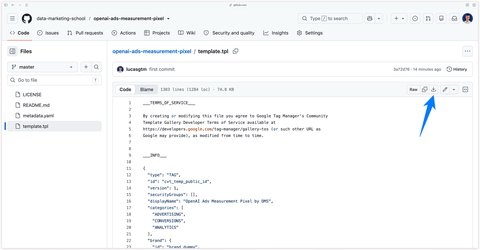
Go to the Templates section of Google Tag Manager. In the Tag Templates section, click New.
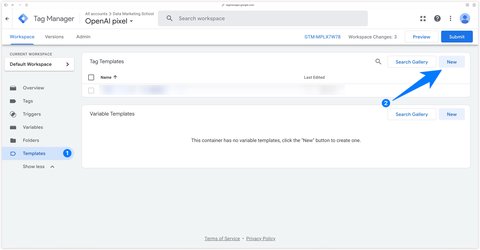
Click the 3 dots at the top right of the template editor, then Import. Select the template.tpl file you just downloaded, then click Save.
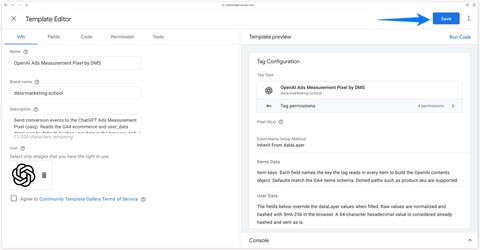
The tag is now available in your list of templates when you create a new tag.
In OpenAI Ads Manager, go to Tools > Conversions, Data Source tab, and create a web data source. OpenAI gives you a Pixel ID, a 22-character string that looks like Xk3PqR8mZt2vLn7wHs5yBa, displayed under the source name.
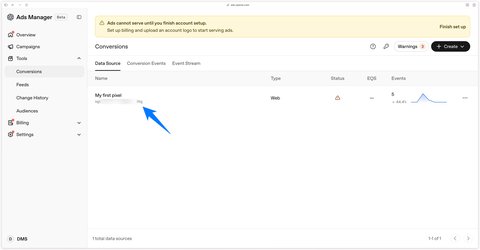
This same Pixel ID is used by the browser pixel and, if you need it, by the server-side Conversions API.
Go to the Tags section of Google Tag Manager, click New and select the OpenAI Ads Measurement Pixel by DMS tag.
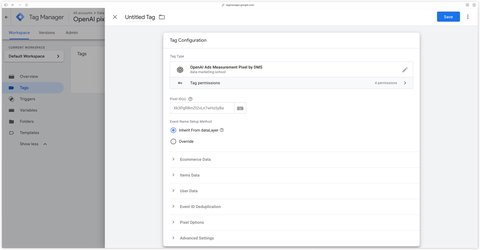
Enter your Pixel ID. To send the same event to several pixels, for example one pixel per brand or one pixel for your agency, separate the IDs with a comma: Xk3PqR8mZt2vLn7wHs5yBa, 7kPz2QxLm4Ns8vRtYb1cDw.
Each pixel is initialized on every fire and receives the event through the SDK’s measureSingle command. Unlike the measure command, it only targets the specified pixel: if another OpenAI pixel is already present on the page, it won’t receive your events.
This field determines the name of the OpenAI event sent. Two modes are available.
Inherit From dataLayer (default): the tag reads the name of the dataLayer event it fires on and converts it to an OpenAI event. See the GA4 to OpenAI event mapping table. A dataLayer event with no equivalent is sent as a custom event, named after the dataLayer event in lowercase, with unsupported characters replaced by _. A Newsletter Signup event therefore becomes the newsletter_signup custom event on the OpenAI side.
Override: you choose the event yourself. The Event Type field offers Standard Event, which shows the dropdown of OpenAI’s standard events, or Custom Event, which shows the Custom Event Name field.
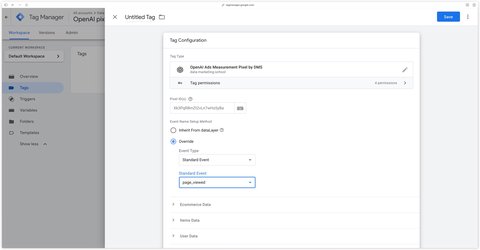
The appointment_scheduled, subscription_created and trial_started events have no equivalent in the GA4 standard: use the Override mode to send them. The app_installed and app_opened events are not supported by the browser pixel, they only go through the Conversions API.
A custom event name must be 1 to 64 characters (letters, digits, dashes or underscores), start and end with a letter or a digit, and must not reuse a standard event name. Otherwise the tag fails and explains why in the preview console.
When the Read e-commerce data from the dataLayer box is checked (default), the tag reads the ecommerce object of your dataLayer: ecommerce.value becomes the event amount, ecommerce.currency its currency and ecommerce.items the list of contents.
The Amount, Currency and Plan ID fields let you force a value. A filled field always wins over the dataLayer value.
Amounts in minor units
OpenAI expects integer amounts expressed in the currency’s minor unit: 2599 for 25.99 USD. You have nothing to convert: enter the amount as in GA4 (25.99) and the tag applies the currency’s ISO 4217 exponent. 25.99 USD becomes 2599, 1250 JPY stays 1250 and 1.250 KWD becomes 1250. An amount without a valid currency is not sent.
The event’s data type is chosen automatically from its name: the lead_created, registration_completed and appointment_scheduled events only accept an amount and a currency, never contents. Plan ID is only sent with subscription_created, trial_started and custom events.
This section drives how the contents array sent to OpenAI is built.
ecommerce.items when filled.id, name, quantity and amount. By default item_id, item_name, quantity and price, that is the GA4 schema.content_type, for example item_category.product by default.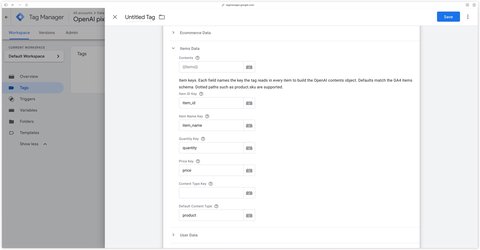
Keys accept dotted notation, for example product.sku, which lets you use the tag with a dataLayer whose products don’t follow the GA4 schema, without a transformation variable. Each item’s price is read in the main unit then converted to the minor unit with the event currency.
When the Read user data from the dataLayer box is checked (default), the tag reads the user_data object of the dataLayer. It accepts both the nested GA4 format (user_data.address.first_name) and a flattened format (user_data.first_name), and recognizes several key aliases. See the table of keys read.
The Email Address, Phone Number, External ID, First Name and Last Name fields let you enter a value manually. The Country, City, Region and Postal Code fields are sent in clear text, as OpenAI expects.
Hashing in the browser
The email, phone number, external ID, first name and last name never leave the browser in clear text. The tag normalizes them then hashes them with SHA-256 using exactly the same rules as OpenAI’s SDK: lowercase email, phone number reduced to its digits with the country code, name without spaces or punctuation. An already hashed value (64 hexadecimal characters, or a sha256_email_address key in the dataLayer) is sent as is. A value the SDK would reject, such as an invalid email or a phone number shorter than 8 digits, is skipped and reported in the console.
Remember to push phone numbers with the international calling code (+353 1 555 0123). A national number loses its leading zero during normalization and won’t match the same user entered with the calling code.
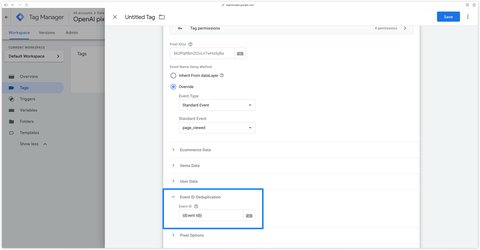
If you send the same event both browser-side (through this tag) and server-side (through the OpenAI Conversions API), OpenAI may count the same conversion twice. To avoid it, send an identical Event ID in both: OpenAI keeps the first event received for a given Pixel ID, event name and Event ID, and ignores the duplicate.
Fill the Event ID field with a variable that generates a unique and stable identifier for a given event, for example the Event Id variable by mbaersch available in the GTM Web gallery. When the field is empty, no Event ID is sent.
Pass the same variable in the event_id parameter of your GA4 tags sent to the server container: the Addingwell by Didomi OpenAI CAPI tag automatically reuses this parameter as the event identifier, and OpenAI can then deduplicate both submissions.
opt_out: true with the event, to exclude it from user-level personalization.[oaiq] prefix. Handy during your tests, to be turned off in production.How you trigger the tag depends on your dataLayer format: a single tag in Inherit From dataLayer mode if it follows the GA4 standard, one tag per event in Override mode otherwise.
If your dataLayer follows the GA4 standard, a single tag is enough. Enter your Pixel ID, leave Inherit From dataLayer selected and both dataLayer reading boxes checked.
Then trigger the tag on every event you want to send to OpenAI, without forgetting page views. In this example, I trigger it on gtm.init (Initialization - All Pages trigger), view_item, add_to_cart, begin_checkout, purchase and generate_lead.
If your dataLayer is custom, create one tag per OpenAI event in Override mode, and map your dataLayer events to the OpenAI events yourself.
Example with a custom AddToCart dataLayer event
dataLayer.push({
  event: "AddToCart",
  cart: {
    currency: "EUR",
    total: 30.03,
    products: [
      {
        sku: "SKU_12345",
        title: "Stan and Friends Tee",
        category: "Apparel",
        unit_price: 10.01,
        qty: 3
      }
    ]
  },
  user_data: {
    email: "[email protected]",
    phone: "+353 1 555 0123",
    first_name: "Jane",
    last_name: "Doe"
  }
});
Configure the tag as follows:
| Field | Value |
|---|---|
| Event Name Setup Method | Override, Standard Event, items_added |
| Read e-commerce data from the dataLayer | unchecked |
| Amount | {{DLV - cart.total}} |
| Currency | {{DLV - cart.currency}} |
| Contents | {{DLV - cart.products}} |
| Item ID Key | sku |
| Item Name Key | title |
| Quantity Key | qty |
| Price Key | unit_price |
| Content Type Key | category |
| Read user data from the dataLayer | checked |
The tag never calls the pixel’s oaiq("consent", ...) command: your GTM trigger decides whether it fires, based on the choice the visitor expressed in your CMP (consent management platform).
The OpenAI pixel is an advertising vendor. So condition the tag’s firing on the acceptance of the OpenAI vendor in your CMP or, if your CMP doesn’t manage this vendor, on the acceptance of the purpose category that represents it: Targeting, Advertising, Performance, or for example the C0004 category (Targeting Cookies) with OneTrust.
Whatever your CMP, the logic is the same:
granted when the OpenAI vendor or its category is accepted, denied otherwise.granted. It replaces the Initialization - All Pages trigger of method 1, so that the page view isn’t lost when the visitor accepts after the page has loaded.add_to_cart, purchase, generate_lead…).Mandatory prerequisite
OpenAI must be declared as a vendor in your CMP’s interface, or attached to an advertising purpose category. Without this declaration, the vendor will never appear in the list of granted consents and your GTM variable will always return denied.
Here is how to proceed with Axeptio, Didomi and OneTrust. Adapt the same logic to your CMP.
To verify, open the GTM preview on a page of your website before making your choice in the banner: the tag must not appear among the fired tags and no request to bzr.openai.com must be sent. Then accept the OpenAI vendor or its category: the tag must fire on your CMP’s event and the events request must appear in the Network tab.
If your website already uses the OpenAI pixel’s consent command, it stays entirely under your control: the tag doesn’t change it.
Before publishing, check that the events are sent correctly. Three tools are useful: the GTM preview, the browser’s Network tab and the Ads Manager Event Stream.
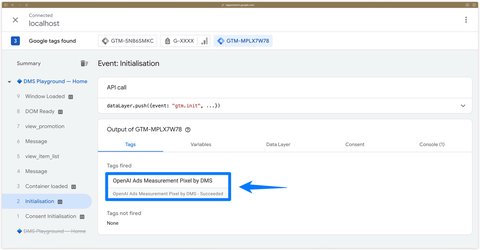
Click Preview at the top right of GTM and browse your website. For each relevant dataLayer event, the tag must appear with the Succeeded status.
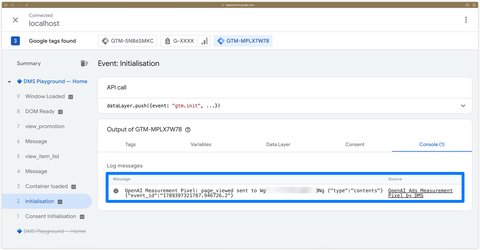
Then open the Console tab of the preview. The tag logs every submission there with the OpenAI Measurement Pixel prefix, showing the event name, the targeted Pixel IDs, the event data and the hashed user object. It’s the fastest way to check that the amount was converted and the identifiers hashed.
In the browser’s developer tools, filter the requests on bzr. You will see three requests: the oaiq.min.js SDK loading, your pixel’s configuration (a JSON file named after your Pixel ID) and the events request that carries your conversions. The SDK batches events that are close in time and sends them as a POST to /v1/sdk/events. The openai::sdk_init and oai::diagnostic events that come along with yours are emitted by the SDK itself, that’s expected. The request body contains your events, the oppref click identifier if present, and a user object with two possible blocks:
in: the identifiers you passed through the tag (em for the email, ph for the phone number, fn and ln for the first and last name, eid for the external ID).fm, ht or js: the identifiers automatically detected by the pixel in your forms, your HTML or your scripts, when automatic advanced matching is enabled on your pixel.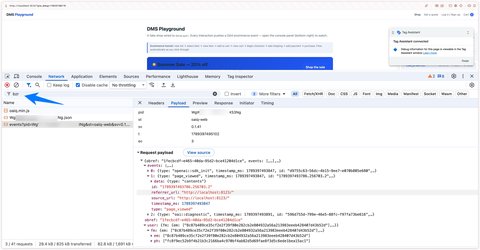
If the same email appears in in and in a form on the page, the SDK only sends it once: its disappearance from the fm block is the sign that the tag’s hashing is identical to the pixel’s.
In OpenAI Ads Manager, the Conversions section offers an Event Stream tab listing the latest events received by your pixel. It’s the final confirmation that your conversions arrive with the right name, amount and currency.
| Console message | Cause | Fix |
|---|---|---|
no Pixel ID configured | The Pixel ID(s) field is empty or only contains commas. | Enter at least one Pixel ID. |
Invalid custom event name | The custom name contains forbidden characters or exceeds 64 characters. | Use only letters, digits, _ and -. |
matches a standard event name | The custom name reuses a standard event. | Select the standard event in the list. |
No event name found in the dataLayer | Inherit mode without an event key in the dataLayer. | Trigger the tag on a named dataLayer event, or switch to Override mode. |
amount ignored because no valid currency is available | An amount is present without a 3-letter ISO 4217 currency. | Fill ecommerce.currency or the Currency field. |
skipped, value rejected by normalization | Invalid email, phone number too short or without a calling code, name made of digits only. | Fix the value pushed into the dataLayer. |
could not hash | The browser doesn’t provide SubtleCrypto, usually because the page isn’t served over HTTPS. | Test on a secure page. |
This table is used by the tag only when the Event Name Setup Method field is set to Inherit From dataLayer.
| dataLayer event name | OpenAI event name | Data type |
|---|---|---|
gtm.init_consent (Consent Initialization) | page_viewed | contents |
gtm.init (Initialization) | page_viewed | contents |
gtm.js (Container Loaded) | page_viewed | contents |
gtm.dom (DOM Ready) | page_viewed | contents |
gtm.load (Window Loaded) | page_viewed | contents |
page_view | page_viewed | contents |
view_item | contents_viewed | contents |
view_item_list | contents_viewed | contents |
add_to_cart | items_added | contents |
begin_checkout | checkout_started | contents |
purchase | order_created | contents |
generate_lead | lead_created | customer_action |
sign_up | registration_completed | customer_action |
| Any other event | custom | custom |
This table is used by the tag only when the Read e-commerce data from the dataLayer box is checked, with the default item keys.
| GA4 parameter path | OpenAI field | Transformation |
|---|---|---|
ecommerce.value | amount | Converted to the minor unit |
ecommerce.currency | currency | Uppercased |
ecommerce.items[item_id] | contents[].id | |
ecommerce.items[item_name] | contents[].name | |
ecommerce.items[quantity] | contents[].quantity | Converted to an integer |
ecommerce.items[price] | contents[].amount | Unit price converted to the minor unit |
| Fixed value | contents[].content_type | product by default |
This table is used by the tag only when the Read user data from the dataLayer box is checked. Each key is looked up in user_data.address first, then at the root of user_data, in the order shown.
| OpenAI field | Pre-hashed keys | Raw keys (hashed by the tag) |
|---|---|---|
email_sha256 | sha256_email_address, sha256_email | email_address, email |
phone_number_sha256 | sha256_phone_number, sha256_phone | phone_number, phone |
external_id_sha256 | sha256_external_id, sha256_customer_id, sha256_user_id | external_id, customer_id, user_id, then user_id at the dataLayer root |
first_name_sha256 | sha256_first_name | first_name |
last_name_sha256 | sha256_last_name | last_name |
country | country | |
city | city | |
region | region | |
postal_code | postal_code, zip, zip_code, postcode |
If your website enforces a Content Security Policy, allow https://bzrcdn.openai.com in script-src and connect-src, and https://bzr.openai.com in connect-src and img-src. Without it, the SDK won’t load or won’t be able to send events.
The OpenAI Ads Measurement Pixel by DMS tag lets you install the ChatGPT Ads pixel without writing a line of code: it leverages your existing GA4 dataLayer, respects the formats OpenAI expects for amounts and identifiers, and prepares deduplication with the Conversions API. The source code is available on GitHub under the Apache 2.0 license: feel free to open an issue if you run into an unsupported case.
oaiq.min.js SDK itself from OpenAI's CDN, once per page, and initializes your Pixel IDs on every fire. Adding the official snippet on top is unnecessary and could create duplicates.measureSingle command, which prevents sending the event to other OpenAI pixels that may be present on the page.A question about this article, need an audit of your setup or server-side migration? Drop me a line, I reply within 24h.
Prefer to talk it through? Book a discovery call →

Install Microsoft Clarity with Google Tag Manager in 10 minutes: official tag, Consent V2 (Axeptio, Didomi) and Smart Events.
Track Calendly meetings and retrieve your invitee's data (email, phone, UTM, payment, form answers) with my sGTM variable
How to accurately track Cal.com appointments with Google Tag Manager

Comments
Join the discussion
A question, some feedback, a specific case? Leave a comment: I reply to every one.