


Title here
Summary here
Facing key advertising challenges? Take control of your tracking: audit, optimization, GDPR compliance, CMP, Consent Mode v2, and server-side tagging.
Contact Lucas or book a discovery callGoogle Analytics
Questions about this article?
Open it in your AI assistant to summarise it or apply it to your setup.
Installing Google Analytics on WordPress is usually the very first step when you want to understand your traffic, measure your audience, and track conversions. The good news is that there are several ways to do it, ranging from a one-click plugin to a cleaner setup via Google Tag Manager.
In brief
We’re going to walk through how to install Google Analytics 4 (GA4) on a WordPress site, step by step, without falling into the usual traps (double tracking, bad code, data that never shows up). And most importantly: we’ll help you pick the right method for your needs!
Before adding any plugin or code to your site, make sure your Google Analytics 4 (GA4) setup is clean — this will prevent 80% of problems down the line.
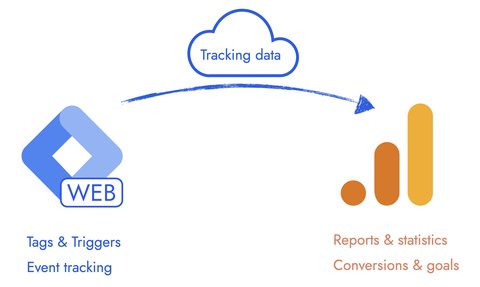
We’re talking about Google Analytics here, not Google Tag Manager. ( Find out the difference between the two in this article).
In GA4, the structure is straightforward: an account (at the “organization” level), then a GA4 property (the space that receives your site’s data), and finally a web data stream.
In practice:
Without a GA4 property, you won’t be able to retrieve a measurement ID (G-XXXX) — and without that, there’s no way to install Google Analytics on your WordPress site.
Once your Google Analytics 4 property is set up, the next step is to configure a web data stream — this is what links your WordPress site to Google Analytics.
In Admin → Data streams, create a “Web” stream, enter your site’s URL and a stream name, then confirm.
You’ll then receive a measurement ID in G-XXXXXXX format. This is the ID you’ll use in a plugin, extension, SEOPress, or Google Tag Manager to install Google Analytics on your WordPress site.
Before moving on to the WordPress installation, take a few minutes to avoid the most common pitfall: double tracking (Google Analytics installed twice via a plugin + inline code + GTM).
Double tracking distorts your data: inflated traffic, inaccurate user counts, unreliable dashboards, and conversion data you can’t trust.
The goal: a single installation source (plugin, code, or GTM — not a combination), followed by a quick check in GA4 using the “Real Time” report across a few key pages (homepage, blog post, conversion page).
Want to install Google Analytics 4 on WordPress cleanly and avoid common mistakes?
As a freelance Google Tag Manager consultant, I can support you from start to finish: audit and diagnosis, tracking setup and implementation, monitoring and ongoing optimization. Feel free to reach out on LinkedIn or by email at to talk it through.
There’s no single “best” installation method. What matters is finding the right approach for your situation (skill level, requirements, tech stack, performance, GDPR, etc.). Here are 6 reliable options for installing Google Analytics on WordPress, from the simplest to the most scalable. The choice is yours!
Site Kit is Google’s all-in-one plugin: Search Console, Analytics, AdSense, with a fairly seamless setup. It’s listed in the official WordPress directory and lets you connect a Google account, then select your account, property, and data stream.
The steps in brief:
Pros and cons
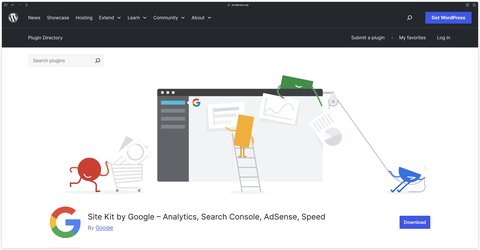
The point of a dedicated Google Analytics plugin for WordPress isn’t just to “add GA4.” It saves time on setup, avoids editing theme files, and sometimes gives you a dashboard directly inside WordPress with traffic data (sessions, users, top pages, sources, etc.).
In practice, these plugins offer two approaches: either a connection via your Google account, or a simpler mode where you enter the G-XXXX measurement ID to automatically inject the tag across all pages of your WordPress site.
This type of plugin can also be handy if you need to manage a few marketing options without going through GTM: basic exclusions, click tracking, outbound links, and some ready-made reports. It’s often the “I want it working fast and want to see my stats without opening GA4” choice.
Things to watch out for
A few popular options:
If you want a simple approach that doesn’t require a Google suite plugin or a heavy analytics extension, a Headers/Footers plugin does the job. The concept is simple: you paste the Google tag (gtag.js) into the <head> of your WordPress site, without touching any files directly.
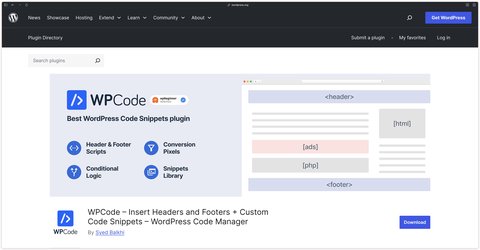
The steps in brief:
Pros and cons
If your WordPress site already uses SEOPress, you can integrate Google Analytics directly through its Analytics settings — no need to add yet another plugin just for tracking.
This works well for standard metrics: page views, traffic, reports. But if you need complex events and granular tracking, Google Tag Manager gives you more flexibility.
If you’d rather hand off the technical side, I’m available as a freelance Google Tag Manager consultant: audit and diagnosis, GTM setup, GA4/Google Ads integration, consent configuration (CMP + Consent Mode v2), and ongoing monitoring to keep tracking clean as the site evolves. Feel free to book a 20-minute discovery call!

This is the old-school approach : adding the GA4 code by hand, typically in header.php just before </head>, or via a wp_head hook if you’re comfortable with WordPress development. It’s effective, but comes with more risk.
Pros and cons
Best practice
Document what you’ve done — otherwise, six months from now, nobody (including you) will know where that tracking code came from.
Once you need more serious tracking — events, conversions, campaign measurement — the cleanest approach is usually to go through Google Tag Manager and install GA4 via GTM. You can set up GTM on WordPress manually or via a plugin like GTM4WP. It’s highly scalable: everything runs through GTM, so you can add events (button clicks, scroll depth, form submissions, etc.), manage conversions, and iterate without ever touching WordPress code.
In practice:
Once the installation is done, the most important step is confirming that data is actually coming through — otherwise you risk analyzing traffic that’s incomplete or just plain wrong.
Start simple:
You should see at least one active user and events appearing (page_view, session_start, etc.). If you installed via GTM or are testing specific events, DebugView is extremely useful for seeing exactly what’s firing.
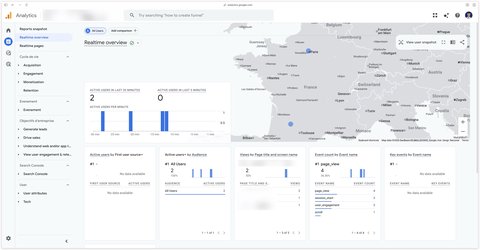
This is the classic trap: GA4 installed twice through a plugin, inline code in the theme, and GTM all running at the same time. The result is skewed data — artificially inflated traffic, inaccurate user counts, unreliable reports, and conversion tracking that can’t be trusted.
Audit your WordPress site and make sure only one method is the single source of truth (a plugin OR GTM OR manual installation — never more than one at a time).
Before diving into your data, make sure you have a solid foundation:
My recommendation
Run a quick end-to-end test: one visit → one key page → one action (button click or form submission) → check the data in GA4.
There’s no perfect method — just the one that fits your context and needs.
Here’s a quick guide:
Easiest setup: Site Kit
The fastest way to connect a WordPress site to Google Analytics, get data flowing, and have basic visibility — without touching any code.
Stats inside WordPress: a dedicated plugin
A good fit if you want to check your numbers in the WP dashboard (without constantly switching to GA4) and your tracking needs are fairly straightforward.
Clean, scalable tracking: GTM
As soon as you’re measuring actions, conversions, and campaigns — and expect to iterate frequently — GTM is generally the most robust foundation.
Lightweight and stable: Header/Footer plugin or SEOPress
If the goal is straightforward traffic measurement with a simple, stable setup, these options do the job without adding unnecessary complexity.
Installing Google Analytics on WordPress isn’t complicated, but the method you choose can make a big difference to the quality of your data and ease of maintenance. If you just want to measure traffic and understand your audience, a plugin may be all you need. If you want clean, scalable, conversion-focused tracking, Google Tag Manager is usually the most solid foundation to build on.
A question about this article, need an audit of your setup or server-side migration? Drop me a line, I reply within 24h.
Prefer to talk it through? Book a discovery call →

Not all Google Analytics 4 events carry the same weight. Discover which ones to track based on your activity: e-commerce, lead generation or SaaS.

GDPR, simplicity, product analytics, European hosting: here are 10 Google Analytics alternatives with their strengths, limitations and pricing.

Find out which automatic events to keep or disable, their limitations and how to configure them correctly.

Comments
Join the discussion
A question, some feedback, a specific case? Leave a comment: I reply to every one.